
スポンサーリンク
Quant Analyzer Tutorial: How to Analyze MT4 Backtest Reports
Quant Analyzer is a practical tool for analyzing MT4 backtest reports in more detail. If you only look at the standard MT4 Strategy Tester report, it can be difficult to find weak trading hours, bad months, large losing trades, or drawdown concentration.
By loading a valid MT4 backtest report into Quant Analyzer, you can review hourly, daily, monthly, and yearly performance, sort trades by profit or loss, and identify patterns that are difficult to see in MT4 alone.
Quick answer:
Quant Analyzer helps you analyze an MT4 backtest after the test itself has been validated. It is especially useful for finding weak time periods, reviewing large losing trades, checking performance stability, and identifying areas of an EA that deserve closer inspection.
Quant Analyzer helps you analyze an MT4 backtest after the test itself has been validated. It is especially useful for finding weak time periods, reviewing large losing trades, checking performance stability, and identifying areas of an EA that deserve closer inspection.
Before analyzing the report:
Make sure the MT4 backtest itself is valid. Check the test period, historical data, Strategy Tester settings, and whether the EA opened and closed trades as expected. Quant Analyzer can analyze the result, but it cannot fix an incorrect backtest.
Make sure the MT4 backtest itself is valid. Check the test period, historical data, Strategy Tester settings, and whether the EA opened and closed trades as expected. Quant Analyzer can analyze the result, but it cannot fix an incorrect backtest.
What Is Quant Analyzer?
Quant Analyzer is an external analysis tool that can read trading reports and display detailed performance statistics. For MT4 users, it is useful because it allows you to review a completed backtest from many different angles.
For example, you can check:
- Hourly performance
- Daily and monthly profit/loss
- Yearly profit factor
- Largest winning and losing trades
- Trade duration
- Weak periods in a backtest
- Portfolio-level performance when combining multiple strategies
MT4 is good at running the backtest itself, but its built-in report is limited when you want to understand why an EA performs well or poorly. Quant Analyzer makes those patterns much easier to inspect.
Note:
A free version of Quant Analyzer is available, although some advanced features are limited. For learning the workflow and reviewing normal MT4 backtest reports, the free version can still be useful.
A free version of Quant Analyzer is available, although some advanced features are limited. For learning the workflow and reviewing normal MT4 backtest reports, the free version can still be useful.
Where Quant Analyzer Fits in an MT4 Backtesting Workflow
Quant Analyzer is most useful at the end of the backtesting process. Before analyzing performance, first make sure the EA was tested under the historical-data and Strategy Tester conditions you intended.
- Prepare the MT4 historical data.
- Check Strategy Tester settings.
- Run a short validation test.
- Run the full EA backtest.
- Export the MT4 report.
- Load the report into Quant Analyzer.
- Find weak periods or trades and review them again in MT4.
We also tested Tickstory with MT4 before analyzing the resulting backtests. Using Tickstory with Advanced Tester, we confirmed 99.90% modeling quality, providing another practical route for preparing a detailed MT4 backtest before moving on to report analysis.
What You Can Analyze with Quant Analyzer
The main benefit of Quant Analyzer is that it helps you find performance patterns that are hidden inside a normal MT4 report.
Hourly, Daily, Monthly, and Yearly Performance
One of the most useful features is checking profit and loss by time period. For example, you can find whether an EA performs poorly during a specific hour, day of the week, month, or year.
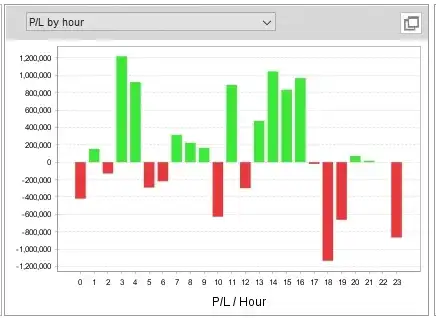
This type of chart makes it easy to see whether a particular trading hour is hurting the overall result. You can then review that period in MT4 and decide whether the behavior deserves further testing.
Profit Factor by Year
You can also check performance by year. This is useful when an EA performs well overall but has weak years hidden inside the long-term result.
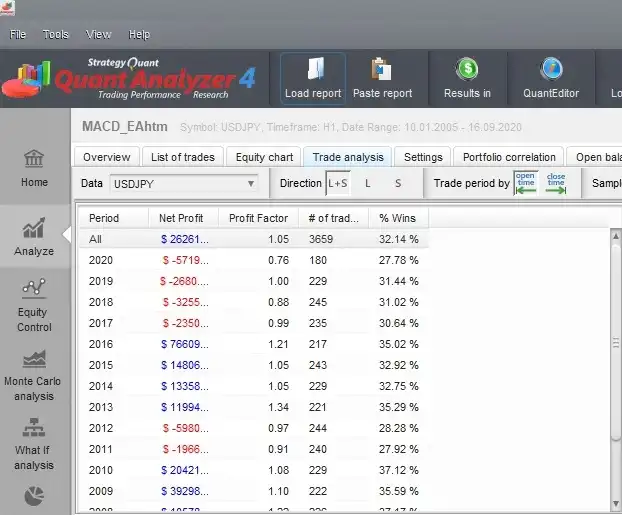
If one year is much worse than the others, you can review the trades from that period and compare the market environment with stronger years.
Sort Trades by Profit or Loss
Another useful feature is sorting trades by profit or loss. MT4 can show trade history, but Quant Analyzer makes it easier to focus on the trades that had the largest effect on the result.
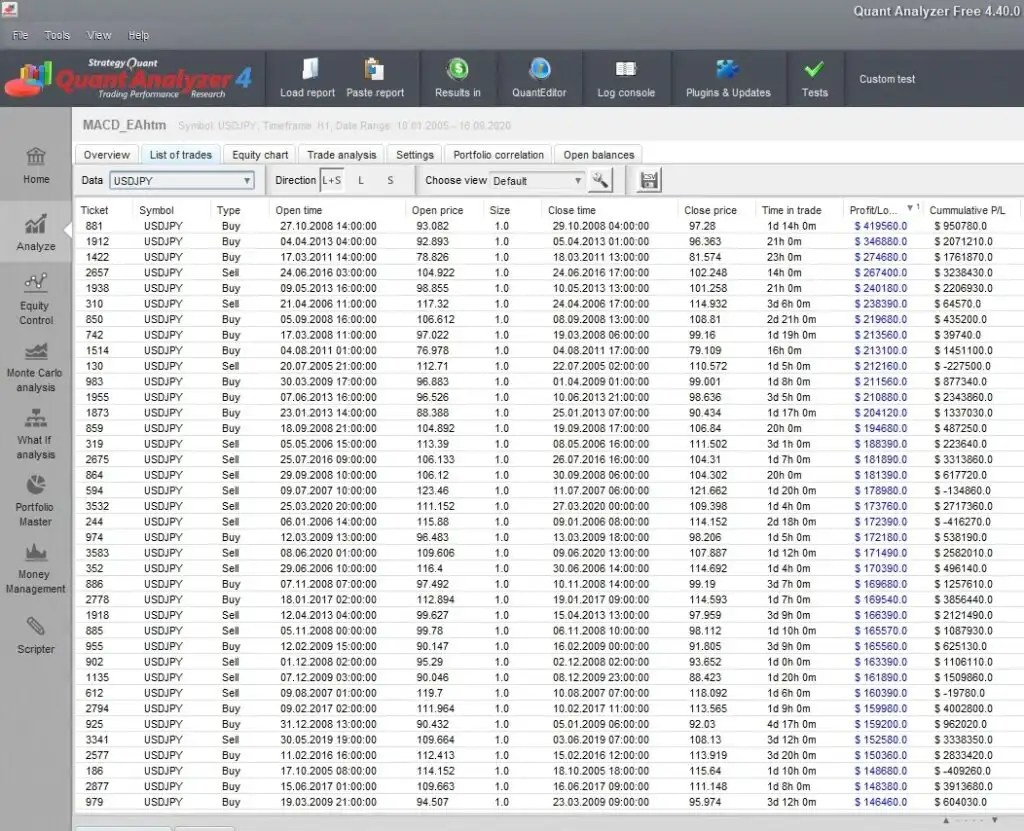
By sorting the trades, you can quickly identify the losses that contributed most to drawdown and then inspect those trades in MT4 visual mode.
How to Download and Install Quant Analyzer
To use Quant Analyzer, first go to the official Quant Analyzer page and create an account.
Create a Free Account
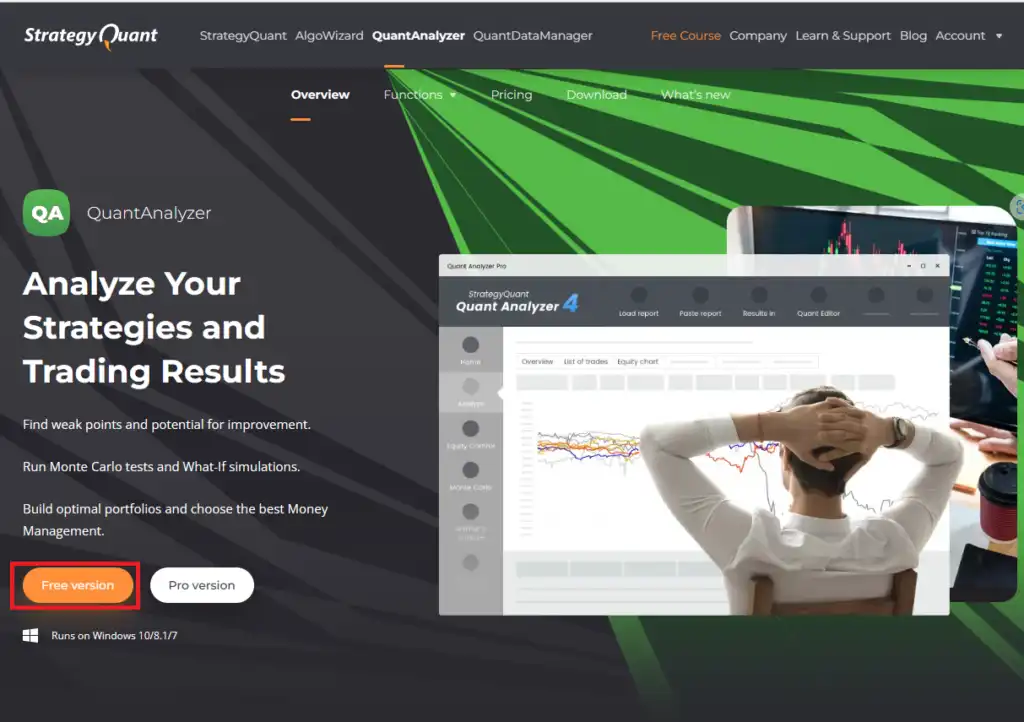
On the Quant Analyzer page, click the button for the free version.
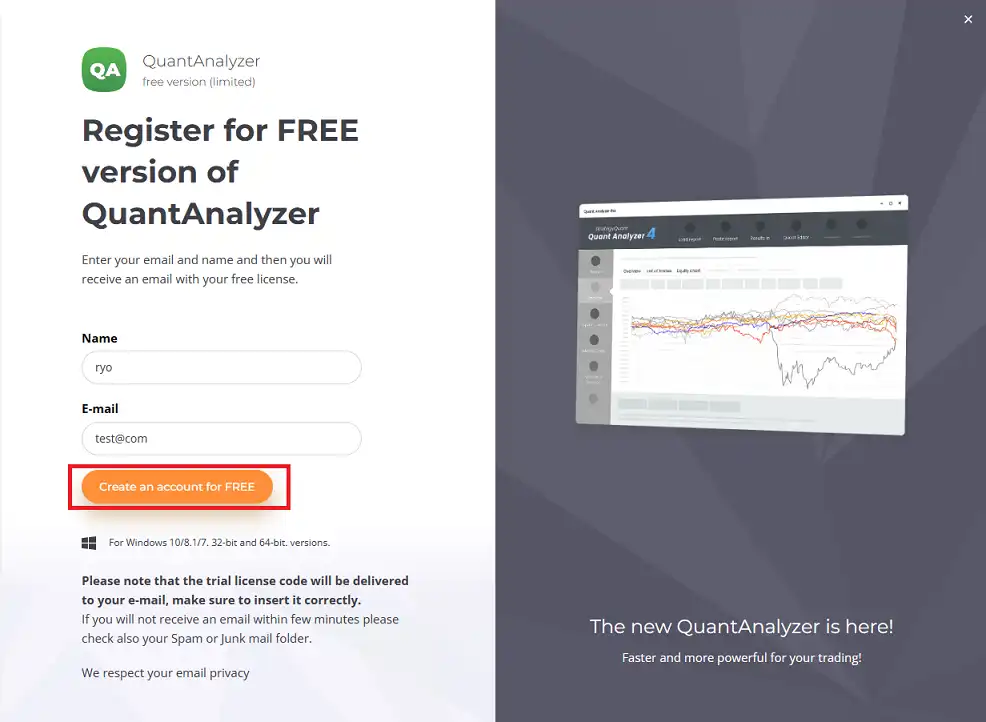
Enter your name and email address, then create a free account. Use an email address you can access because confirmation and license information may be sent to it.
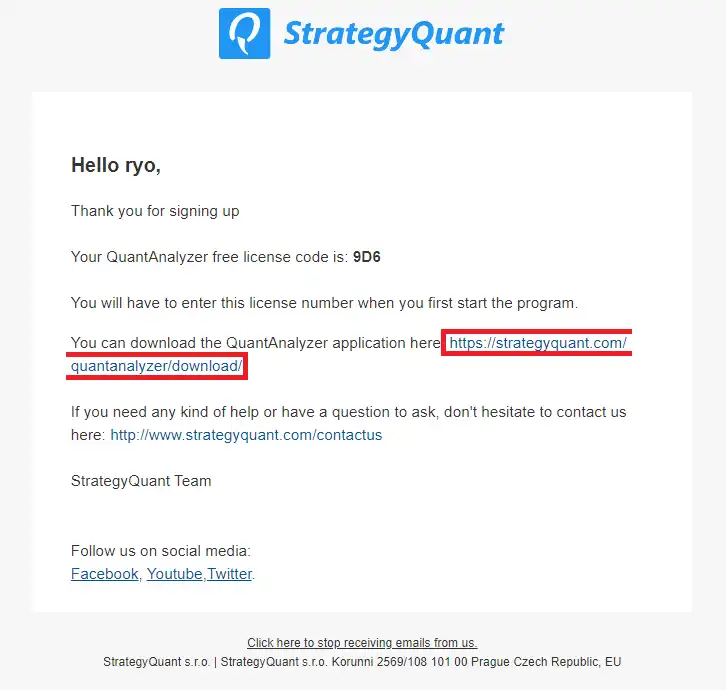
After registration, check your email and follow the confirmation link.
Download the Installer
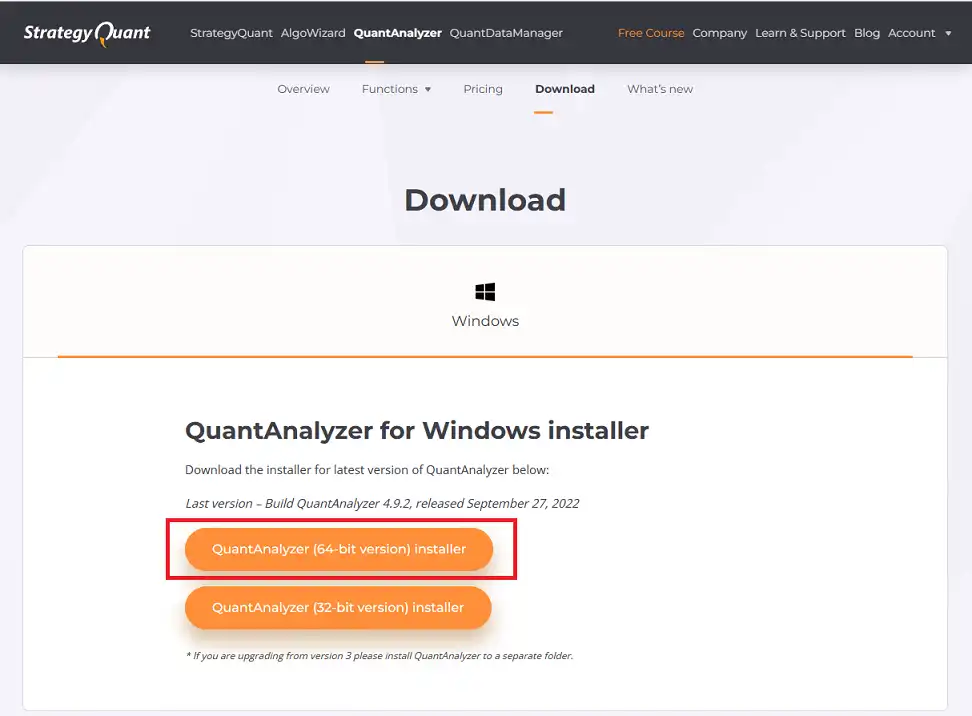
After confirming your account, select the installer that matches your operating system.
Install Quant Analyzer
Run the downloaded setup file. The file name may include a version number, so the exact name can differ depending on the release.
When the setup wizard starts, accept the license agreement and continue.
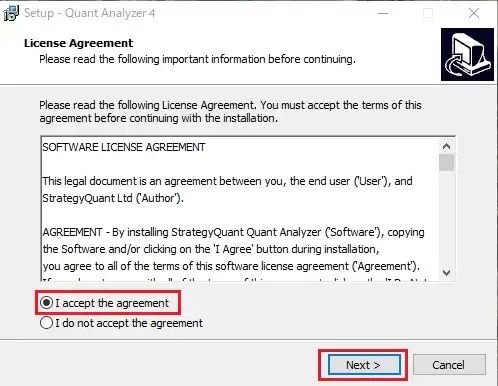
In most cases, you can continue with the default installation settings. When the final confirmation screen appears, click the install button and wait until installation is complete.
After installation, launch Quant Analyzer and enter your license key if required. The license key is usually included in the email you receive after creating an account.
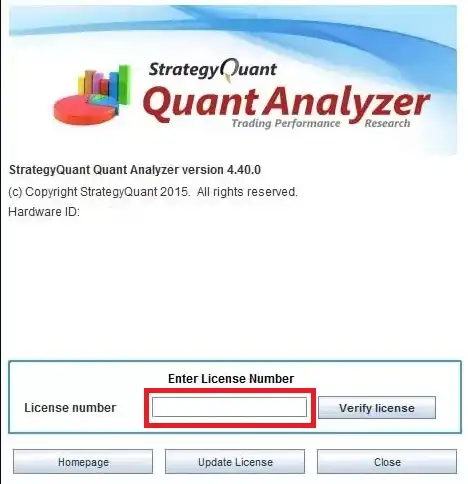
Once the license is verified, the installation is complete.
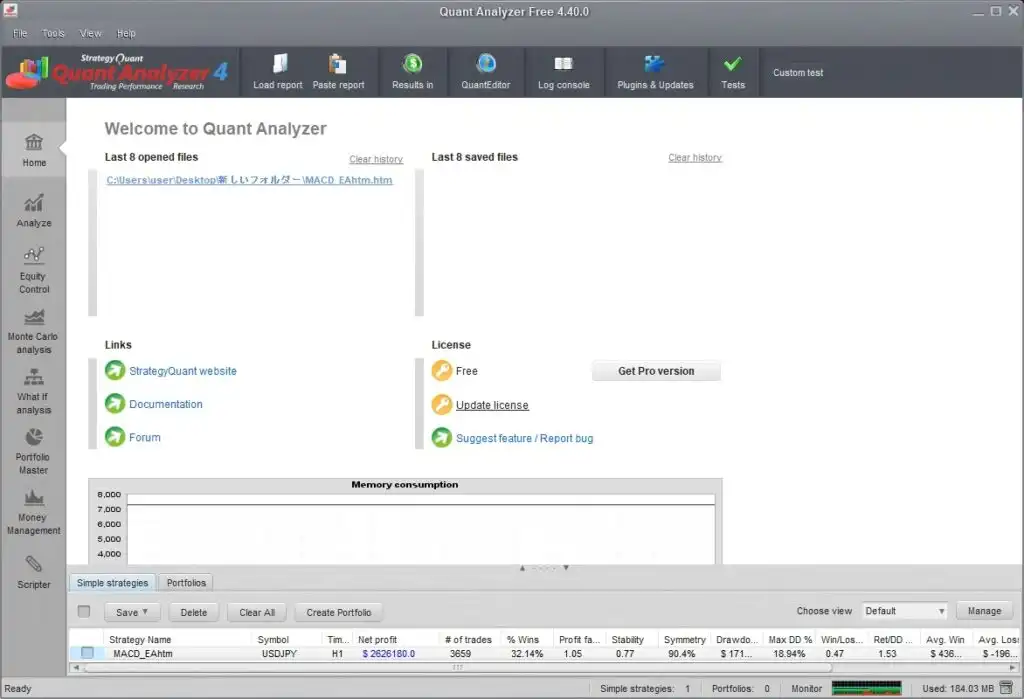
When you launch Quant Analyzer again later, you may see a start screen. Click Continue to open the tool.
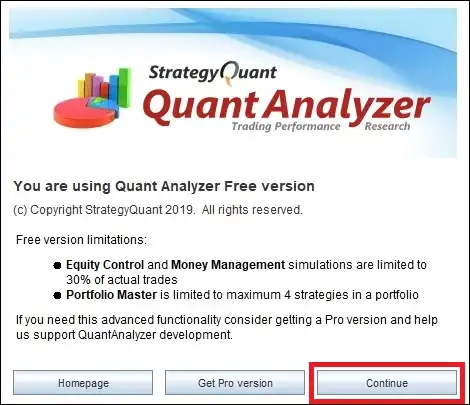
How to Load an MT4 Backtest Report into Quant Analyzer
After installing Quant Analyzer, the next step is to export a completed MT4 backtest report and load it into the tool.
Check the backtest first:
Before exporting the report, confirm that Strategy Tester used the intended symbol, timeframe, period, historical data, and EA settings. A detailed analysis is only useful when the original backtest is valid.
Before exporting the report, confirm that Strategy Tester used the intended symbol, timeframe, period, historical data, and EA settings. A detailed analysis is only useful when the original backtest is valid.
Step 1: Save the Backtest Report in MT4
First, run a backtest in MT4 Strategy Tester. After the test is complete, open the Report tab. Then right-click the report area and choose Save as Report.
MT4 will export the backtest result as an HTML report file.
Step 2: Load the Report in Quant Analyzer
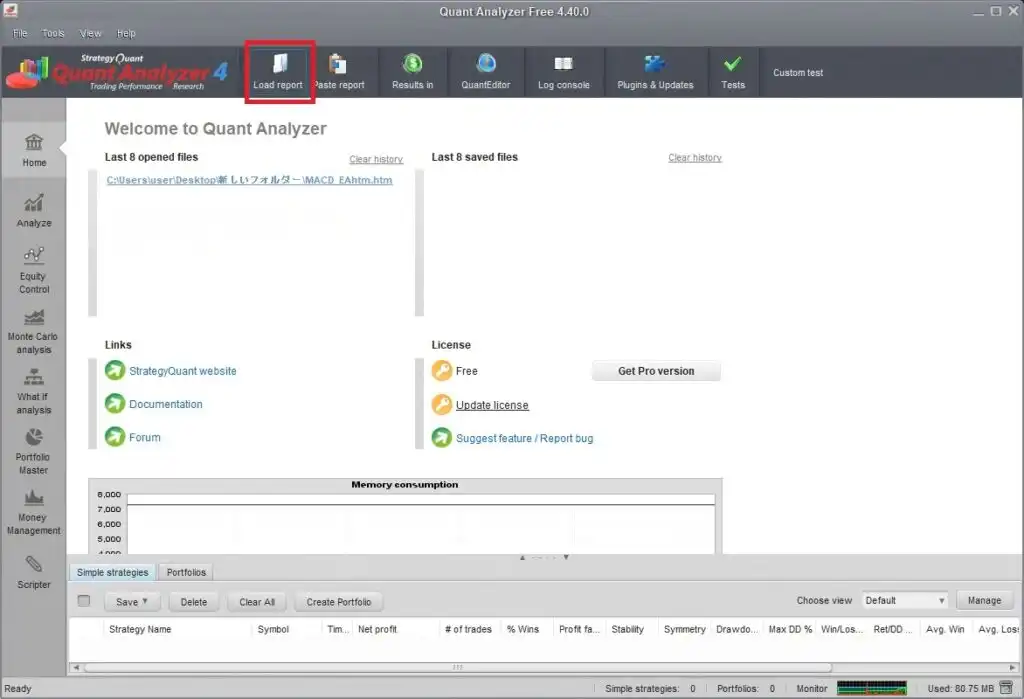
Open Quant Analyzer and click Load Report.
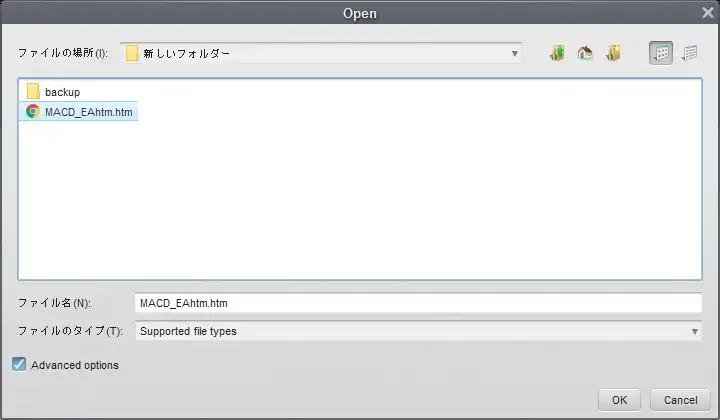
Select the MT4 report file you exported earlier, then click OK.
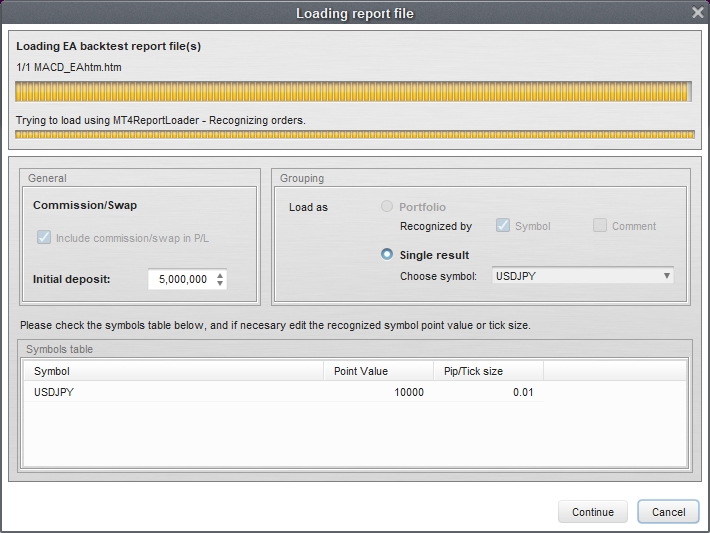
Quant Analyzer will load the file. When the progress bar reaches the end, click Continue.
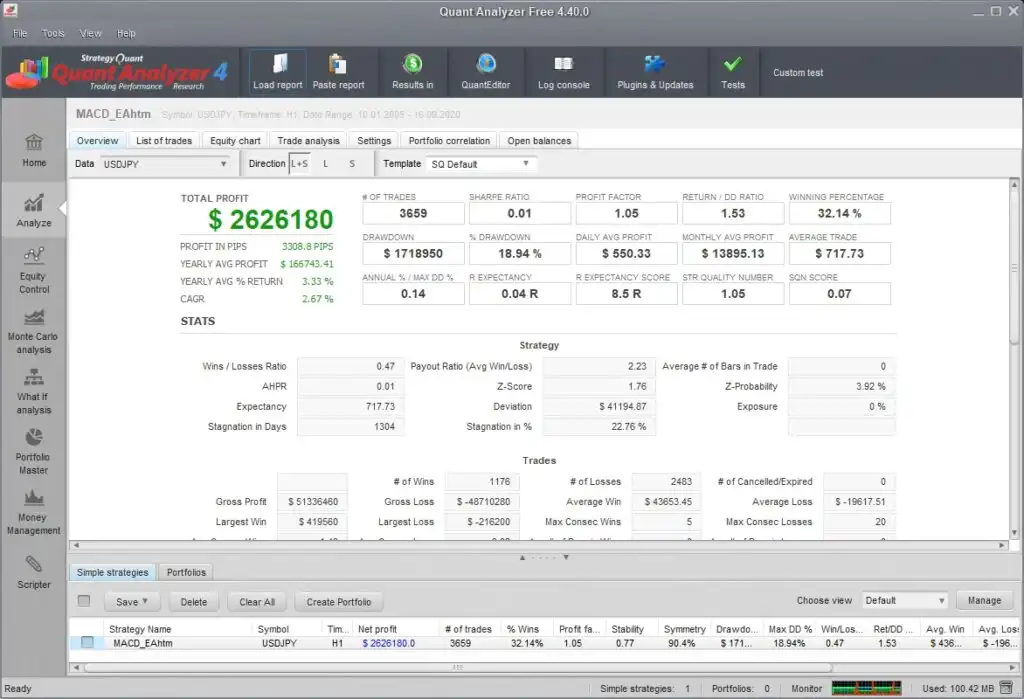
After the report is loaded, the backtest result will be displayed in Quant Analyzer.
How to Analyze MT4 Backtest Results
Once the MT4 report is loaded, you can start reviewing the backtest from different angles. The goal is not only to see whether the EA was profitable, but also to understand where its strengths and weaknesses came from.
Trade Analysis
The Trade analysis tab allows you to review results by year, day, hour, and other time periods.
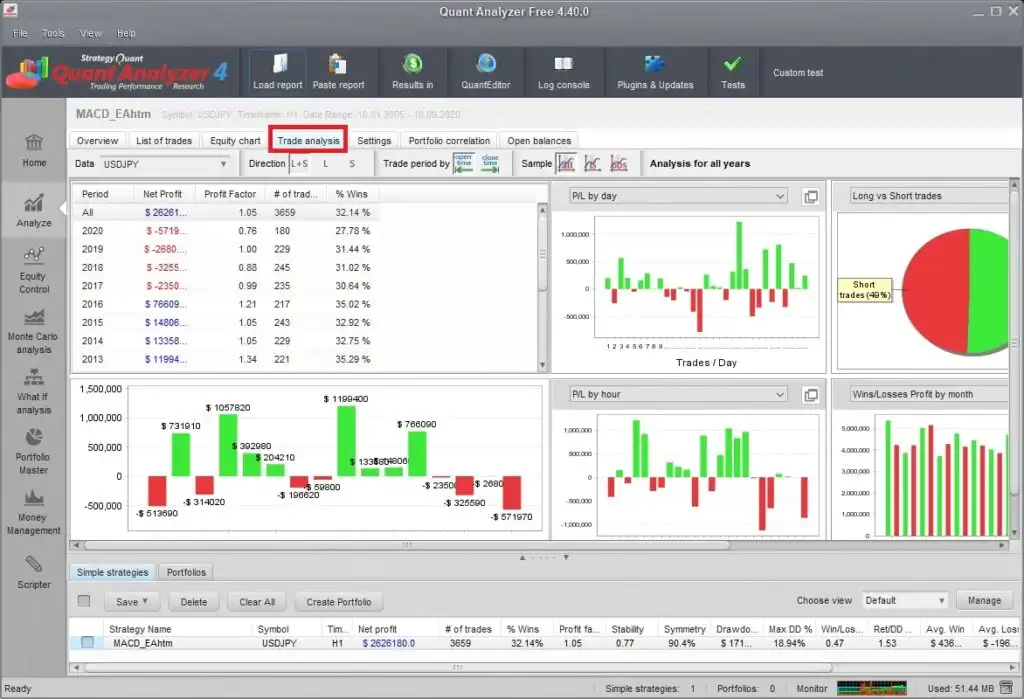
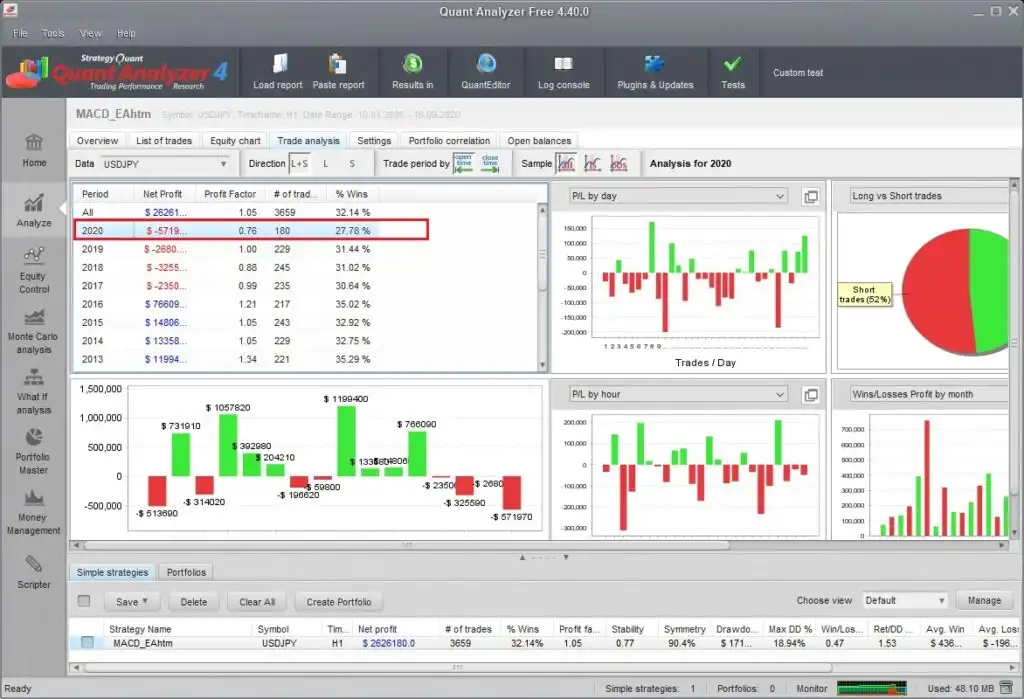
For example, if some years are negative, you can double-click a specific year and review the details for that period.
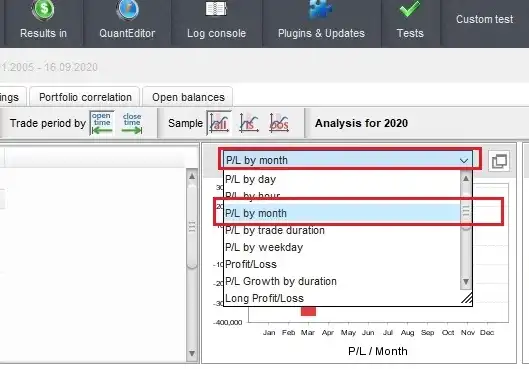
You can also switch the chart to monthly profit/loss to see which months contributed most to the gains or losses.
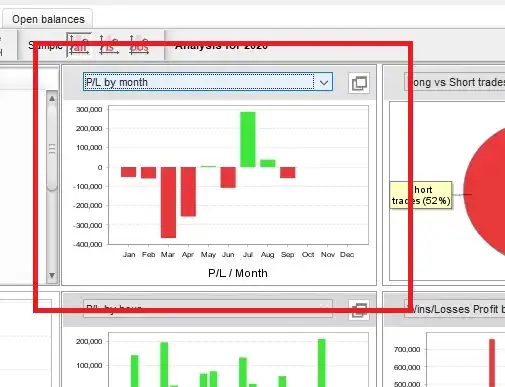
If a specific month has a large loss, return to MT4 and review that period with visual mode. This helps you understand whether the loss came from market conditions, entry timing, delayed exits, or another characteristic of the strategy.
List of Trades
The List of trades tab shows the individual trades contained in the report. This is useful when you want to inspect the biggest losing trades or review how long positions were held.
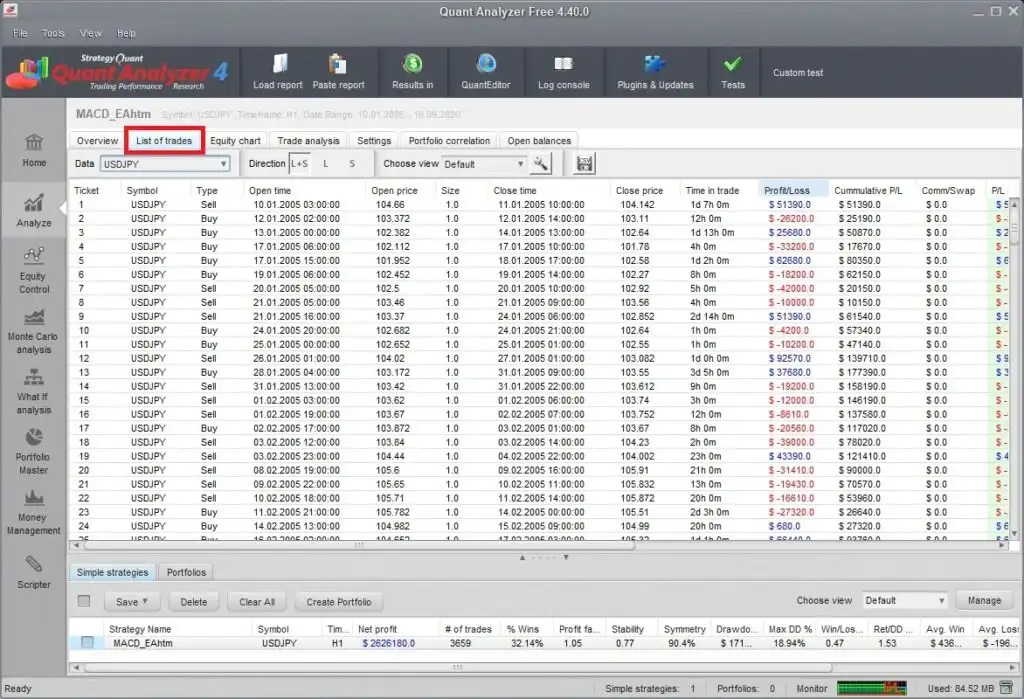
For example, sort the trades by Profit/Loss and inspect the largest losses first.
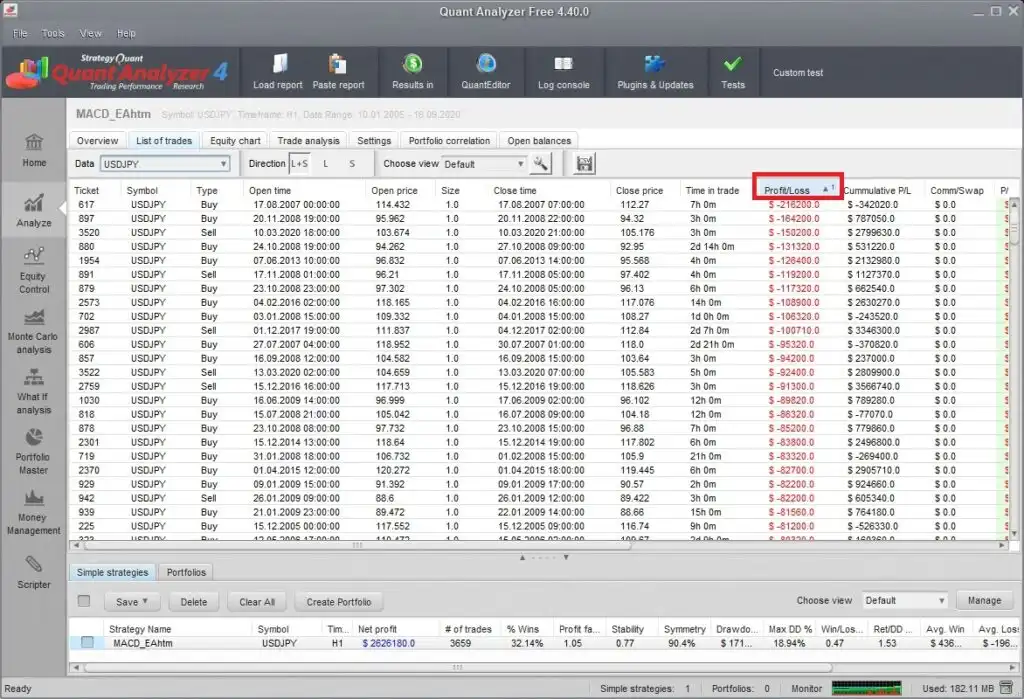
You can also check Open Time, Close Time, and Time in trade. A very long losing trade may be worth checking again in MT4 to understand how the exit rules behaved.
Example: Finding Weak Trading Hours
Here is a simple example of how Quant Analyzer can be used during EA development. Assume that an EA has a profit factor of around 1.05. It is slightly profitable, but the result suggests there may be room for improvement.
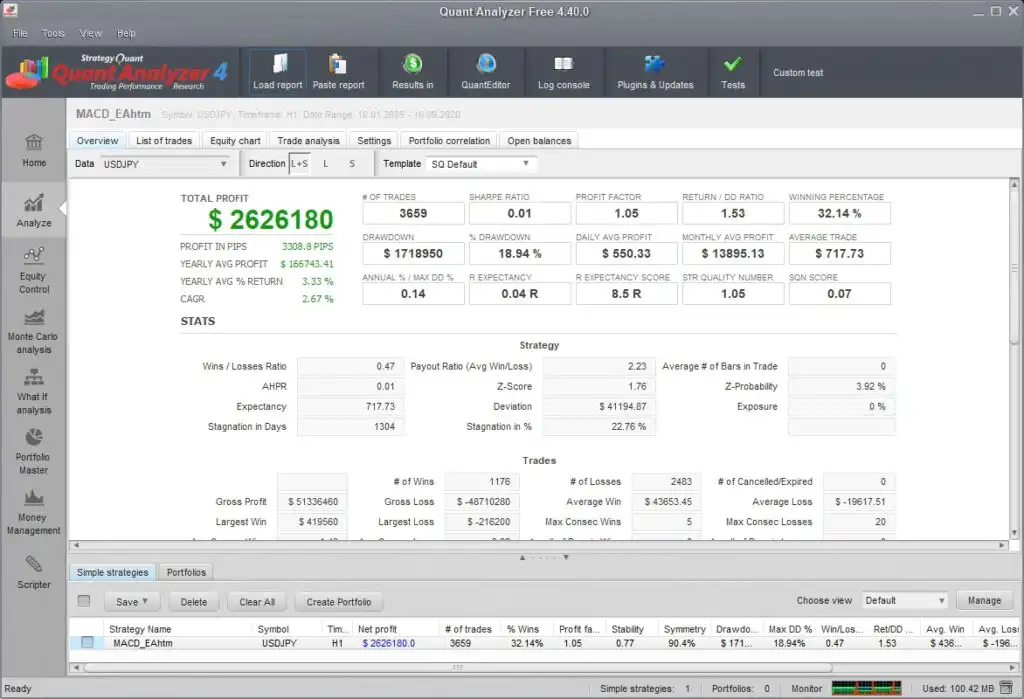
First, check performance by hour in the Trade analysis screen.
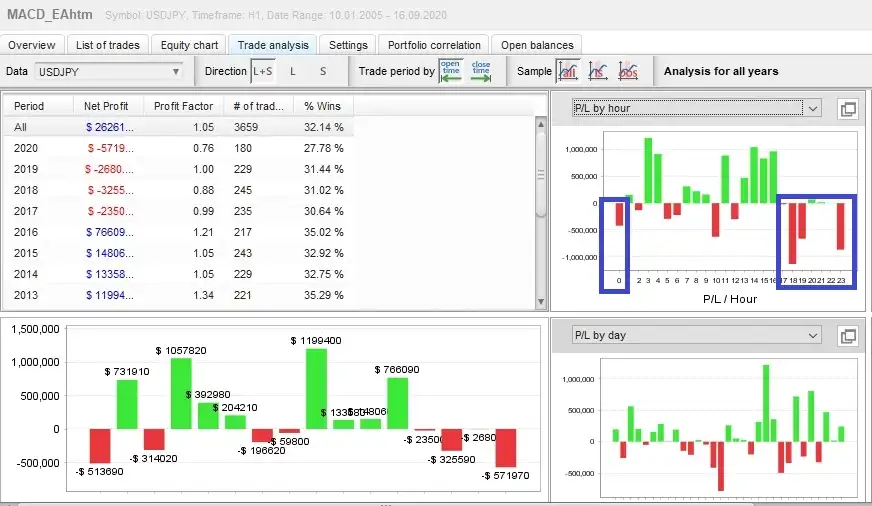
If the EA performs poorly during a specific time range, you can investigate whether that period has a meaningful market characteristic. For example, if performance between 18:00 and 00:00 is consistently weak, you might test a version that avoids trading during that period.
After applying the time filter, run another backtest under the same test conditions and compare the result.
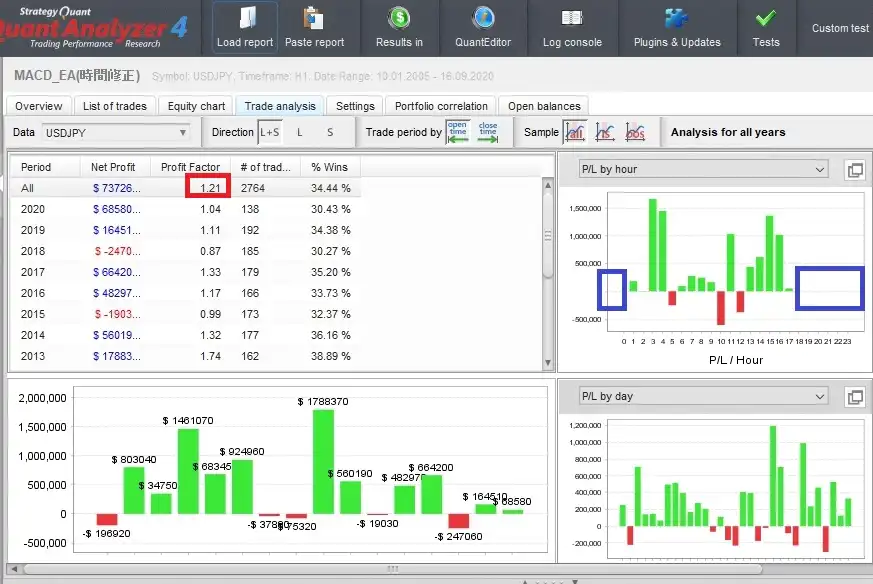
In this example, avoiding the weak trading period improved the overall result. The important next step is to check whether the filter also makes sense from a trading perspective rather than relying only on one improved backtest.
Be careful about curve fitting:
If you remove bad periods only to make a historical result look better, the EA can become overfitted. A time filter is stronger when there is also a reasonable market explanation, such as liquidity, spread behavior, or session characteristics.
If you remove bad periods only to make a historical result look better, the EA can become overfitted. A time filter is stronger when there is also a reasonable market explanation, such as liquidity, spread behavior, or session characteristics.
Practical Ways to Use Quant Analyzer for EA Improvement
Quant Analyzer is most useful as part of an iterative review process. The goal is to understand the EA’s behavior more clearly and identify areas worth testing again.
| What to Check | Why It Matters | Possible Action |
|---|---|---|
| Hourly performance | Find weak trading hours | Investigate and test a time filter |
| Monthly performance | Find months with large losses | Review the market conditions during those months |
| Yearly profit factor | Check whether performance is stable over time | Review weak years and compare market environments |
| Largest losing trades | Understand what contributed most to drawdown | Review the trades in MT4 visual mode |
| Time in trade | Find unusually long positions | Review exit rules and stop-loss behavior |
Common Mistakes When Using Quant Analyzer
Quant Analyzer can reveal many useful patterns, but the analysis still needs to be interpreted carefully.
- Do not remove every bad period without a clear reason.
- Do not judge an EA only by profit factor.
- Do not ignore large losing trades just because the final result is profitable.
- Do not assume one improved backtest proves the EA is robust.
- Do not analyze a report before confirming the historical-data and Strategy Tester setup.
- Compare important findings with actual chart behavior in MT4.
A useful workflow is to use Quant Analyzer to identify suspicious periods or trades and then return to MT4 visual mode to see what actually happened.
Related MT4 Backtesting Guides
FAQ About Quant Analyzer and MT4 Backtest Analysis
Q. What is Quant Analyzer used for?
Quant Analyzer is used to analyze trading reports and backtest results. For MT4 users, it helps review hourly, daily, monthly, and yearly performance, sort trades, and find weaknesses in an EA.
Q. Can Quant Analyzer load MT4 backtest reports?
Yes. You can save an MT4 backtest report from Strategy Tester and load the HTML report into Quant Analyzer for more detailed analysis.
Q. Is Quant Analyzer free?
A free version of Quant Analyzer is available, while some advanced features are limited compared with the Pro version. For basic MT4 backtest review and learning the workflow, the free version can still be useful.
Q. What should I check before loading an MT4 report?
Confirm that the Strategy Tester used the intended symbol, timeframe, historical data, test period, spread, and EA settings. Quant Analyzer should be used after the backtest itself has been validated.
Q. What should I check first in Quant Analyzer?
A good starting point is performance by year, month, day, and hour. Then sort the trades by profit or loss and review the largest losing trades.
Q. Can Quant Analyzer help improve an EA?
It can help identify weak periods, large losing trades, and unstable performance patterns. Those findings can then be investigated in MT4 and used as ideas for additional testing.
Q. What is the risk of using Quant Analyzer incorrectly?
The main risk is curve fitting. If you remove losing trades or weak time periods only to improve one historical result, the EA may become overfitted to that test data.
Summary
Quant Analyzer is a practical final step in an MT4 backtesting workflow. It helps you move beyond the standard Strategy Tester report and understand where an EA’s gains, losses, and drawdowns actually came from.
- Quant Analyzer can load MT4 backtest reports.
- You can review hourly, daily, monthly, and yearly performance.
- You can sort trades by profit, loss, and trade duration.
- It is useful for finding weak trading hours and large losing trades.
- Validate the Strategy Tester and historical-data setup before analyzing the report.
- Important findings can be checked again with MT4 visual mode.
- Be careful not to overfit an EA based only on one backtest result.
If you want to understand why an EA wins or loses, Quant Analyzer is a useful tool to add after a valid MT4 backtest. Start by loading one report and checking which time periods and trades had the largest effect on the result.