
スポンサーリンク
How to Use Tickstory with MT4: 99.90% Modeling Quality Tested
If you want to backtest an MT4 Expert Advisor with more detailed price data, Tickstory is one of the most useful tools to consider.
Tickstory can download historical tick data and export it into HST and FXT files that MT4 can use for charts and Strategy Tester backtests. You can start with the free Tickstory Lite, then move to a paid Standard or Professional license when you want faster data access and more advanced testing features.
For this guide, we actually installed Tickstory Lite, connected it to an MT4 test environment, exported USDJPY tick data, tested the paid version, and finally ran the same EA through Advanced Tester for MT4. In our test, we confirmed 99.90% modeling quality.
Quick answer
Tickstory Lite is a good way to learn the workflow and export shorter periods of tick data. For longer backtests, the paid version is much more practical because an active subscription can use Tickstory’s dedicated data servers. In our test, about six months of USDJPY data took more than an hour to reach roughly 40% in Lite, while the paid version completed a similar six-month export in about six minutes. With Advanced Tester, we also confirmed 99.90% modeling quality in MT4.
- What Is Tickstory?
- Our MT4 and Tickstory Test Environment
- How to Download and Install Tickstory Lite
- How to Export Tickstory Tick Data to MT4
- We Tested a Long Export with Tickstory Lite
- The Paid Version Exported About Six Months in About Six Minutes
- Advanced Tester for MT4 Reached 99.90% Modeling Quality
- Does Tickstory Change the Actual MT4 Backtest Result?
- Tickstory Lite vs Standard vs Professional
- Try Tickstory
- Summary: Tickstory Can Take MT4 Backtesting from Basic History to 99.90%
- Tickstory and MT4 FAQ
What Is Tickstory?
Tickstory is a historical market data tool that can download tick data and export it into formats used by trading and backtesting platforms, including MetaTrader 4.
For MT4 users, it is especially useful when you want to test an EA with more detailed historical price movement than a normal broker history file may provide.
Tick-level data can be particularly useful for:
- Scalping EAs
- EAs with tight stop loss or take profit levels
- Strategies that react to intrabar price movement
- Time-sensitive entry logic
- Comparing EA results across different historical data sources
Tickstory uses Dukascopy historical tick data and prepares it for MT4 and other supported platforms.
Prefer a manual Dukascopy workflow?
If you want to work with Dukascopy historical data without using Tickstory, we also have a separate MT4 import guide.

Our MT4 and Tickstory Test Environment
We tested Tickstory using a separate MT4 installation created specifically for backtesting.
The broker terminal used in our test has a broker-specific symbol suffix, so USDJPY appears as USDJPY-cd.
This is a useful real-world example because many MT4 brokers use suffixes such as .m, .pro, -cd, or similar variations.
| Tickstory Lite | 1.9.8.14 |
| Platform | MetaTrader 4 |
| Tickstory symbol | USDJPY |
| Broker symbol | USDJPY-cd |
| Account type | Demo / backtesting environment |
Your broker may use a different symbol name, server time, leverage, contract specification, or suffix. The important point is to load the specifications from the MT4 installation you actually want to test.
How to Download and Install Tickstory Lite
Download Tickstory Lite
Start from the Tickstory official website and open the download page.
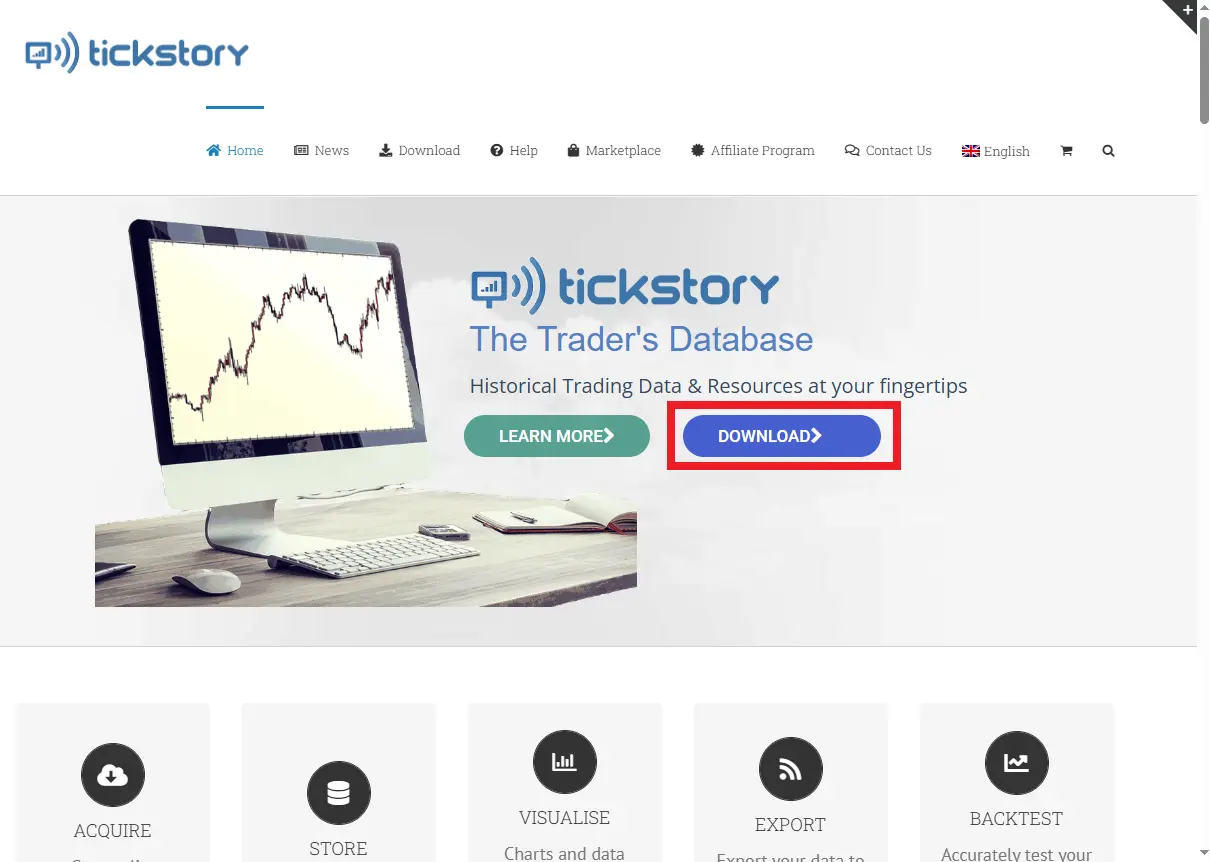
On the official website, choose DOWNLOAD to open the plan list. If you want to try Tickstory before purchasing a license, select Tickstory Lite.
Enter your name and email address
When we selected Lite, Tickstory displayed the Tickstory Lite Download Registration form.
The form asked for:
- Your Name
- Your Email
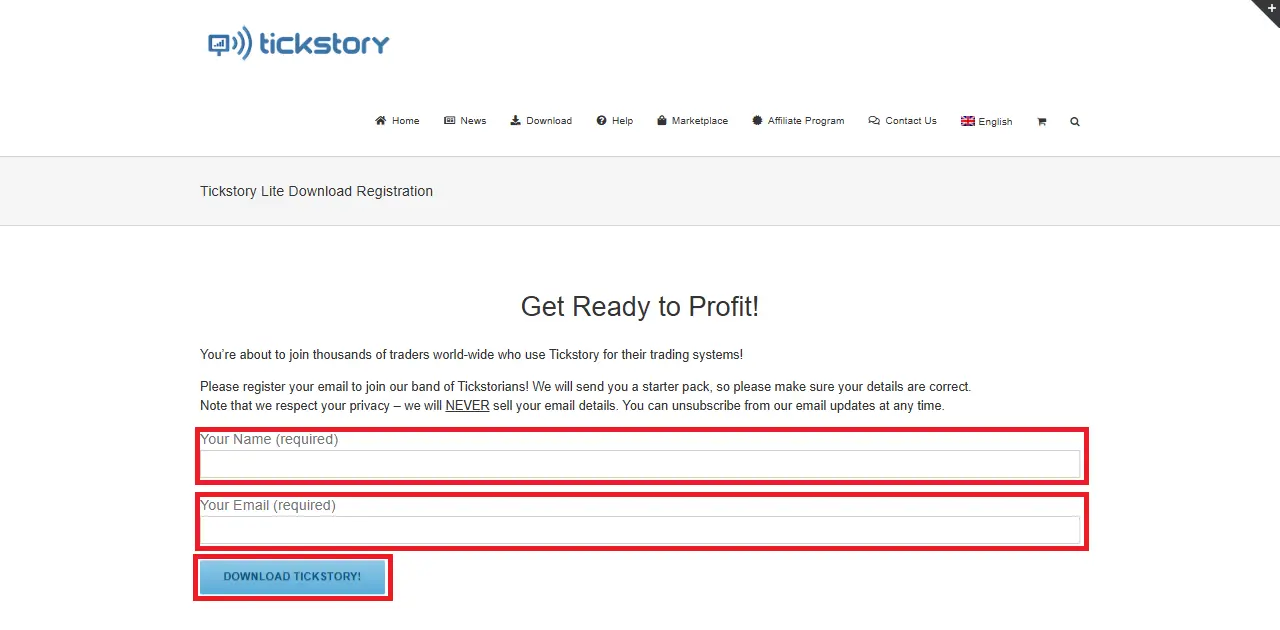
After submitting the form, the installer downloaded automatically.
Installer used in our test
tickstorylite_setup_1.9.8.14.exeThe registration email also included links to documentation, MT4 and MT5 guides, the FAQ, and the Tickstory support forum.
Install Tickstory Lite
Run the downloaded installer and follow the setup wizard.
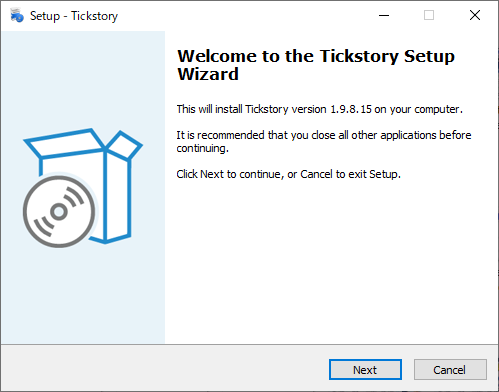
The installation itself is straightforward:
- Confirm the installation folder.
- Choose whether to create a desktop shortcut.
- Start the installation.
- Finish the setup wizard.
Launch Tickstory for the first time
After installation, launch Tickstory and accept the license agreement.
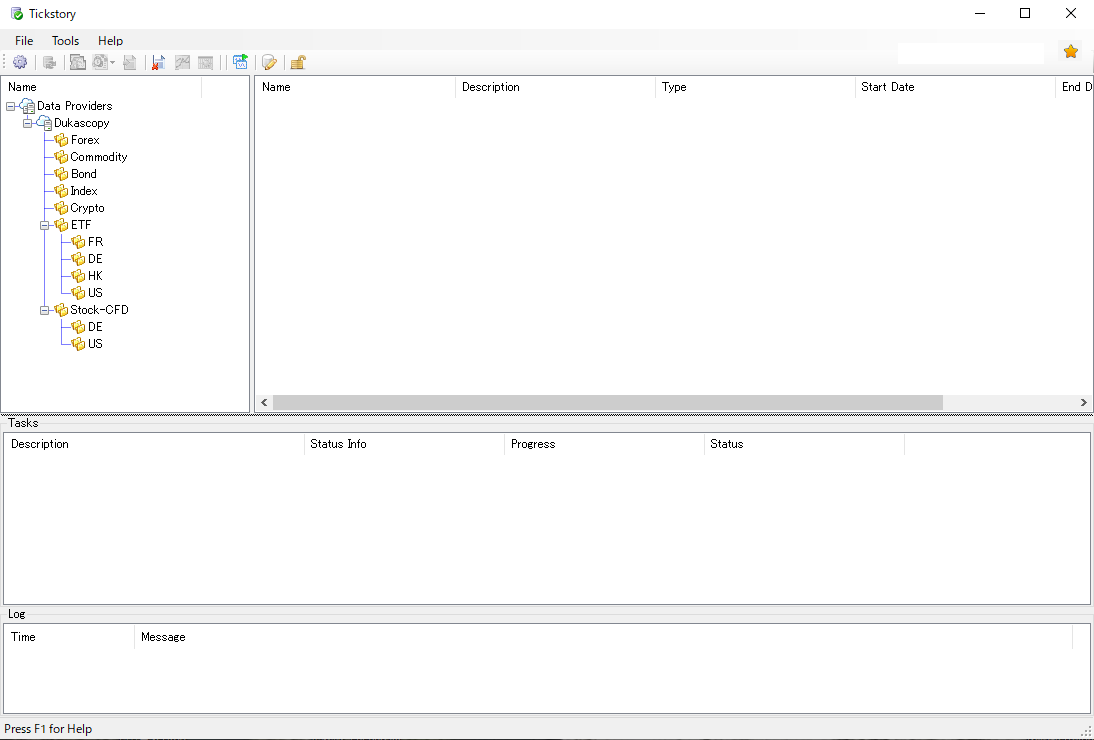
The instrument list includes categories such as:
- Forex
- Commodity
- Bond
- Index
- Crypto
For this test, we selected Dukascopy → Forex → USDJPY.
How to Export Tickstory Tick Data to MT4
Select USDJPY and open Export to MT4
Select USDJPY from the Forex instrument list, right-click it, and choose Export To MT4….
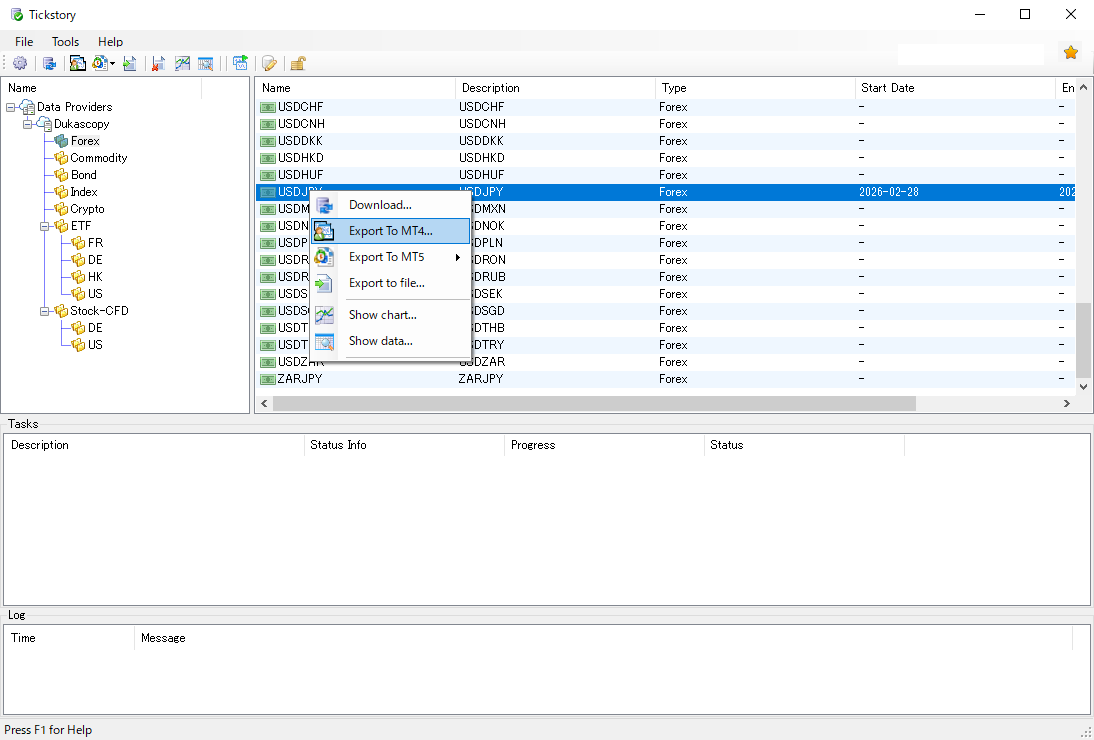
You do not necessarily need to run a separate download step first. If the required data is not already stored locally, Tickstory can retrieve it as part of the export process.
Use TickstoryInfoExpert to read your broker settings
One of the most important steps is matching the exported data to the MT4 broker environment you actually want to test.
For this, we used TickstoryInfoExpert. It reads information such as the MT4 server, account settings, symbol specifications, and broker-specific symbol naming.
In our environment, the Expert Advisor was not automatically placed into the target terminal, so we manually copied it into:
MQL4\Experts
We then attached it to the broker’s USDJPY chart.
| Setting | Our test value |
|---|---|
| ConfigFileName | FXTF.mt4config |
| SymbolSuffix | -cd |
| GenerateAllBrokerSymbols | false |
| AllowWhenNotConnected | false |
The important setting here is SymbolSuffix.
Our broker used USDJPY-cd, so we entered:
-cd
If your broker uses EURUSD.m, for example, the suffix would be .m.
If your broker simply uses EURUSD or USDJPY, you normally do not need a suffix.
Our configuration file was not generated while the market was closed
During our test, TickstoryInfoExpert did not generate the configuration file while the market was closed. After the market reopened and the MT4 terminal received a new tick, the file was generated normally.
Load the MT4 configuration file into Tickstory
After TickstoryInfoExpert generates the .mt4config file, return to Tickstory and load the MetaTrader configuration.
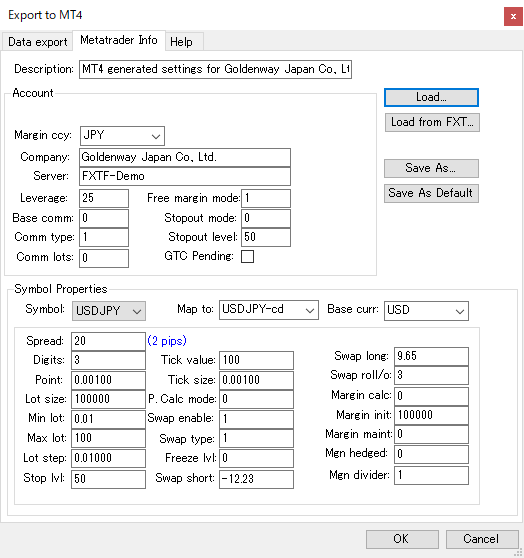
In our test, this imported information including:
- Broker server details
- Account currency
- Leverage
- Symbol specifications
- The mapping from USDJPY to the broker symbol USDJPY-cd
This is much safer than manually guessing contract specifications or symbol settings.
Choose the date range and time zone
Next, choose the historical period you want to export and the time zone that matches the MT4 environment you are trying to reproduce.
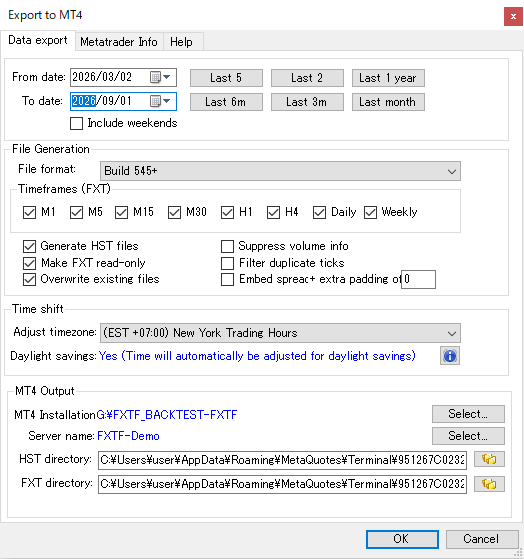
For our specific broker test environment, we used:
(EST +07:00) New York Trading Hours
This is only our test example. You should choose the time setting that matches your own broker and EA logic.
Time zone matters for time-based EAs
If your EA trades only during specific sessions, resets values at a certain server time, or uses daily candle boundaries, a different historical-data time zone can change the backtest result.
Generate HST and FXT files
For our MT4 export, we generated both HST and FXT files.
| Include weekends | Off |
| Timeframes | Required timeframes selected |
| Generate HST files | On |
| Make FXT read-only | On |
| Overwrite existing files | On |
HST files are used for MT4 chart history, while FXT files are used by the MT4 Strategy Tester.
Using a separate MT4 installation for this type of testing is useful because it keeps generated test files separate from your normal trading terminal.
We Tested a Long Export with Tickstory Lite
About six months reached roughly 40% after more than one hour
We first tried exporting roughly six months of USDJPY data with Tickstory Lite.
During the process, we occasionally saw messages such as:
- Server busy or unavailable
- Timeout
- ProtocolError 500
Our Tickstory Lite result
We started an approximately six-month export at 10:10.
More than one hour later, progress was still around 40%.
We then reduced the period to roughly two months, from July 2026 through August 30, and the export completed successfully.
For learning the workflow and testing shorter periods, Tickstory Lite is a useful starting point.
If you regularly need several months or years of tick data, however, the paid version becomes much more attractive.
How to confirm the export is complete
When processing finishes, the task list reaches 100% and the status changes to Completed.
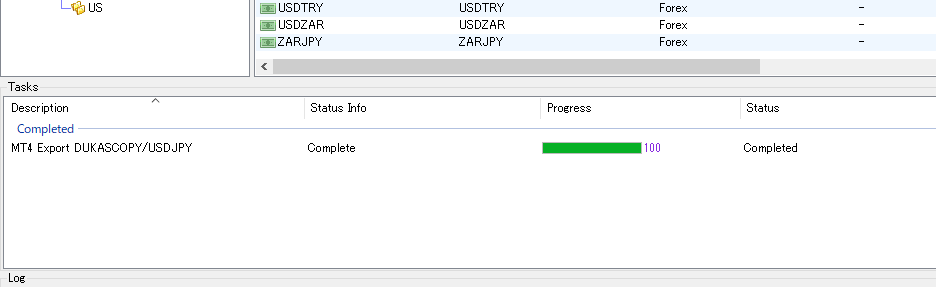
If the progress has reached 100% but the status still says In Progress, wait until the final processing finishes and the status changes to Completed.
The Paid Version Exported About Six Months in About Six Minutes
After testing Lite, we activated a paid Tickstory license and repeated the process with a longer historical period.
This time, we selected approximately six months:
March 2, 2026 – September 1, 2026
The export completed in approximately six minutes.
One timeout message appeared during the process, but Tickstory automatically resumed and completed the export.
Why is the paid version much faster?
With an active subscription, Tickstory can use its own dedicated data servers.
Instead of requesting source data in smaller hourly batches, Tickstory’s dedicated servers can provide data in monthly batches. This makes long historical-data operations much faster and can also reduce the effect of server congestion or timeout problems during large downloads.
For traders who repeatedly test several months or years of data, this is one of the clearest practical advantages of the paid version.
The paid license supplied for our test was not identified in our test records as Standard or Professional, so we refer to it simply as the paid version. Standard and Professional pricing is explained later in this guide.
Advanced Tester for MT4 Reached 99.90% Modeling Quality
We also installed Advanced Tester for MetaTrader 4 and connected it to the MT4 installation used for the Tickstory backtest.
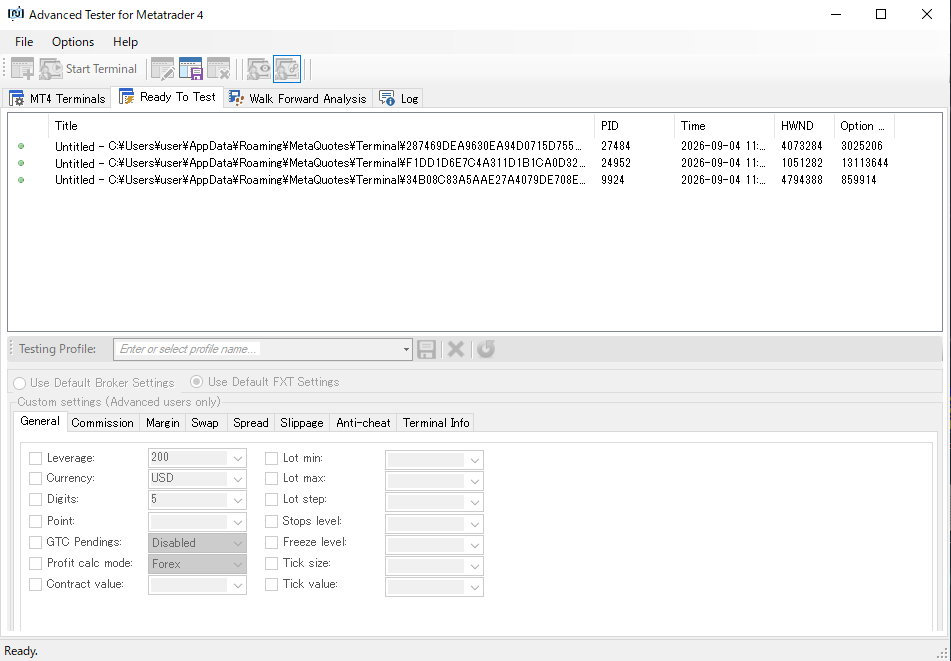
We confirmed 99.90% modeling quality
After exporting the Tickstory data and running the EA through Advanced Tester, the MT4 Strategy Tester report showed:
99.90% Modeling Quality
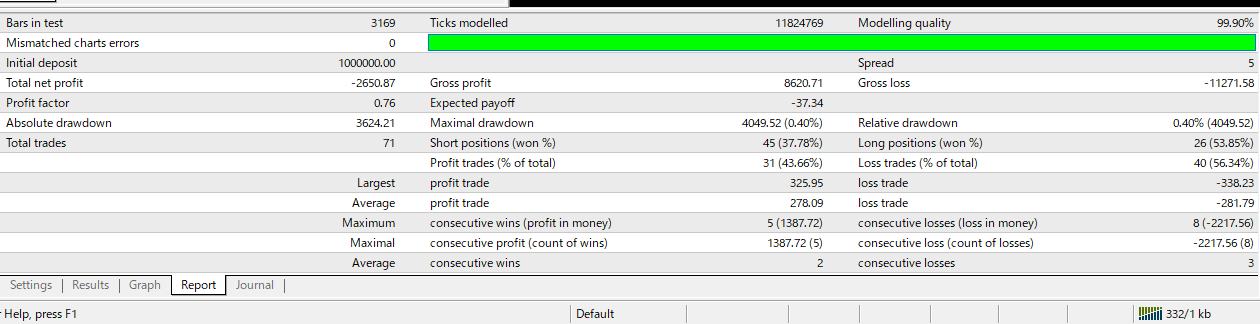
The screenshot above was captured during a longer test extending through August 31. For the comparison below, we reran the EA using a common comparison period ending July 31.
Advanced Tester can model more realistic test conditions
Advanced Tester also provides additional controls beyond the normal MT4 Strategy Tester, including settings for:
- Variable spread
- Slippage
- Commission
- Margin-related conditions
- Swap-related conditions
For this article, our main objective was to confirm the Tickstory data workflow and verify that 99.90% modeling quality could be reached in our MT4 test environment.
Does Tickstory Change the Actual MT4 Backtest Result?
To see how the result changed with a different historical-data source, we ran the same Bollinger Bands EA using three historical-data environments:
- Broker-provided historical data
- Tickstory + Advanced Tester
- MetaQuotes-style HST data as an additional reference
The main EA settings were:
- EA: 02_BollingerBands
- Timeframe: H1
- Model: Every tick
- Test period: April 1 – July 31, 2026
- Lot size: 0.01
- Take profit: 28 pips
- Stop loss: 28 pips
- Bollinger Bands period: 20
- Spread: 5 points
- Initial deposit: JPY 1,000,000
The broker-history and Tickstory tests used our FXTF demo test environment with USDJPY-cd. The additional MetaQuotes-style HST reference used an XM MT4 USDJPY environment. The third column is included as a reference rather than a perfectly identical broker environment.
| Metric | Broker Historical Data | Tickstory + Advanced Tester | MetaQuotes-style HST Reference |
|---|---|---|---|
| Modeling quality | 90.00% | 99.90% | 90.00% |
| Mismatched charts | 0 | 0 | 0 |
| Net profit | JPY -2,520 | JPY -2,903.27 | JPY -3,530.23 |
| Profit factor | 0.74 | 0.71 | 0.65 |
| Max drawdown | JPY 3,671 (0.37%) | JPY 4,049.52 (0.40%) | JPY 4,571.45 (0.46%) |
| Total trades | 59 | 60 | 59 |
| Winning trades | 25 | 25 | 24 |
| Losing trades | 34 | 35 | 35 |
| Win rate | 42.37% | 41.67% | 40.68% |
The overall trading behavior remained surprisingly close
Across roughly four months, the total number of trades was:
- 59 with the broker historical data
- 60 with Tickstory
- 59 with the additional HST reference
The broker-history and Tickstory tests also produced the same number of winning trades: 25.
For this particular EA, the broad trading behavior therefore stayed quite close even though the historical-data sources were different.
At the same time, net profit, profit factor, drawdown, and individual entry prices were not identical. That is why comparing the actual trades is useful in addition to checking the modeling-quality percentage.
The same EA entered at different prices
One trade on April 3 shows the difference clearly.
| Data source | Entry time | BUY price |
|---|---|---|
| Broker historical data | Apr 3, 15:30 | 159.633 |
| Tickstory | Apr 3, 15:30 | 159.698 |
| MetaQuotes-style HST reference | Apr 3, 15:31 | 159.653 |
The broker data and Tickstory triggered the trade at the same minute, but the entry price differed by 6.5 pips. The additional HST reference entered one minute later.
This is a good example of why the data source can matter even when the EA logic and Strategy Tester settings are unchanged.
A practical testing workflow
Broker or free historical data can be very useful for basic EA development and repeated testing. When an EA looks promising, Tickstory gives you another way to verify the strategy with detailed tick data and a different historical-data source.
Backtest results are based on historical data and do not guarantee future trading performance.
MT4 Strategy Tester not running correctly?
If your test produces no trades, missing history, or an empty report, check our MT4 Strategy Tester troubleshooting guide.
Tickstory Lite vs Standard vs Professional
Tickstory currently offers three main options:
- Lite – free
- Standard – paid perpetual license
- Professional – paid perpetual license with a longer included subscription period
The most confusing part is the word subscription. Standard is not a US$79 monthly plan, and Professional is not simply a US$129 annual plan.
The initial payment gives you a perpetual Tickstory software license. The subscription period controls access to additional services such as the dedicated data servers, Advanced Tester, software updates, and support.
| Plan | Initial price | Best for |
|---|---|---|
| Lite | Free | Learning Tickstory and testing the basic export workflow. |
| Standard | US$79 Includes 1 month of subscription access | Trying the full paid workflow without committing to a long subscription period. |
| Professional | US$129 Includes 12 months of subscription access | Ongoing EA development and regular long-term backtesting. |
Pricing checked in September 2026. Applicable local taxes may be added at checkout.
What does the included subscription actually give you?
While the subscription is active, Tickstory provides additional services including:
- Tickstory dedicated high-speed data servers
- Advanced Tester for MT4
- Ongoing software updates
- Technical support
The dedicated data servers are especially useful for long backtests
With an active subscription, Tickstory can retrieve historical data from its own infrastructure in monthly batches. This is one of the main reasons long data exports can be dramatically faster than the Lite workflow.
When the included subscription expires, your paid Tickstory software license does not disappear. You can continue using the licensed software.
You only need to renew if you want to continue using the subscription-based services.
Subscription renewal prices
| Plan | Included period | Optional renewal |
|---|---|---|
| Standard | 1 month | US$9.95 / month |
| Professional | 12 months | US$99 / year |
Which plan makes more sense?
The practical choice is:
- Use Lite first if you only want to learn the workflow.
- Choose Standard if you want to try the full paid environment for a shorter period.
- Choose Professional if you expect to use Tickstory regularly for several months or longer.
For example, maintaining Standard subscription access for six months would cost approximately:
US$79 + (US$9.95 × 5) = US$128.75
That is almost the same as the US$129 Professional initial price, which already includes 12 months of subscription access.
For long-term EA development and repeated backtesting, Professional therefore becomes the more attractive pricing structure relatively quickly.
Simple way to choose
Learn the workflow
Tickstory Lite
↓
Run serious long-period backtests
Standard or Professional
↓
While the subscription is active
Dedicated data servers + Advanced Tester
Try Tickstory
If you only want to learn how Tickstory works, you can start with Lite for free.
If you plan to export longer periods of tick data, use the high-speed dedicated servers, or run Advanced Tester regularly, compare the Standard and Professional plans before purchasing.
Summary: Tickstory Can Take MT4 Backtesting from Basic History to 99.90%
We started this test with Tickstory Lite and followed the workflow through the paid version and Advanced Tester.
The main steps were:
- Install Tickstory Lite.
- Select the instrument to export.
- Read the broker’s MT4 specifications with TickstoryInfoExpert.
- Match symbol suffixes and time settings.
- Generate HST and FXT data.
- Run the EA in MT4 Strategy Tester.
- Use the paid version for faster long-period data access.
- Run Advanced Tester and confirm 99.90% modeling quality.
Tickstory Lite worked well as an entry point, but our long-period test clearly showed the advantage of the paid environment. A roughly six-month export that was still around 40% after more than an hour in Lite completed in about six minutes with our paid license.
Our EA comparison also showed that Tickstory did not completely change the broad trading behavior: the broker historical data produced 59 trades and Tickstory produced 60. However, entry prices and performance metrics were not identical, which makes Tickstory useful as an additional historical-data verification environment.
A practical workflow is therefore:
Broker or free historical data for basic testing
↓
Tickstory Lite to learn the workflow
↓
Standard or Professional for regular tick-data testing
↓
Advanced Tester for more detailed MT4 backtesting
For MT4 users who want to move beyond basic broker history and test EAs with detailed tick data, Tickstory is a strong addition to the backtesting toolkit.
Analyze the backtest after it is complete
Once your MT4 backtest is valid, Quant Analyzer can help you review hourly performance, weak months, large losing trades, and drawdown concentration.
Tickstory and MT4 FAQ
Q. Is Tickstory Lite free?
Yes. We used Tickstory Lite to download USDJPY tick data, configure an MT4 environment, and export data before moving to the paid version.
Q. Can I use Tickstory Lite for serious long-term backtesting?
Lite can export MT4 data and is useful for learning the workflow. In our approximately six-month test, progress was still around 40% after more than one hour. The paid version completed a similar six-month export in about six minutes, making it much more practical for repeated long-period testing.
Q. Is Tickstory Standard US$79 per month?
No. US$79 is the initial price for the Standard perpetual software license and includes one month of subscription access. After that, the subscription can optionally renew for US$9.95 per month.
Q. What is the difference between Tickstory Standard and Professional?
The main difference is the included subscription period. Standard costs US$79 and includes one month, while Professional costs US$129 and includes 12 months. Both provide a perpetual Tickstory software license.
Q. What are Tickstory dedicated data servers?
They are Tickstory’s own historical-data servers available while a paid subscription is active. They can deliver data in monthly batches rather than smaller hourly requests, which makes long historical-data operations much faster.
Q. What happens when my Tickstory subscription expires?
Your purchased Tickstory software license remains usable. The subscription controls additional services such as the dedicated data servers, Advanced Tester access, software updates, and ongoing support.
Q. Can Tickstory produce 99.90% modeling quality in MT4?
In our test environment, Tickstory data used through Advanced Tester produced an MT4 Strategy Tester report with 99.90% modeling quality and zero mismatched chart errors.
Q. What should I do if my broker uses a symbol suffix?
Configure the broker-specific suffix when generating the MT4 information. In our test, Tickstory used USDJPY while the broker terminal used USDJPY-cd, so we set SymbolSuffix to -cd and then loaded the generated MT4 configuration into Tickstory.
Q. Why is TickstoryInfoExpert not generating a configuration file?
In our test, the file was not generated while the market was closed. After the market reopened and MT4 received a new price tick, the configuration file was created normally.
Q. Will Tickstory give the same backtest result as my broker historical data?
Not necessarily. In our four-month comparison, the broker historical data produced 59 trades and Tickstory produced 60, so the overall trading behavior was close. However, some entry prices, net profit, profit factor, and drawdown values differed because the historical-data sources were different.